Home Strategy Hardware Setup Comparison
Ultimate 2026 Guide

Running Your
Local AI Stack

Take full control. Run powerful models like DeepSeek & Flux on your own hardware. No subscriptions. Setup in minutes.

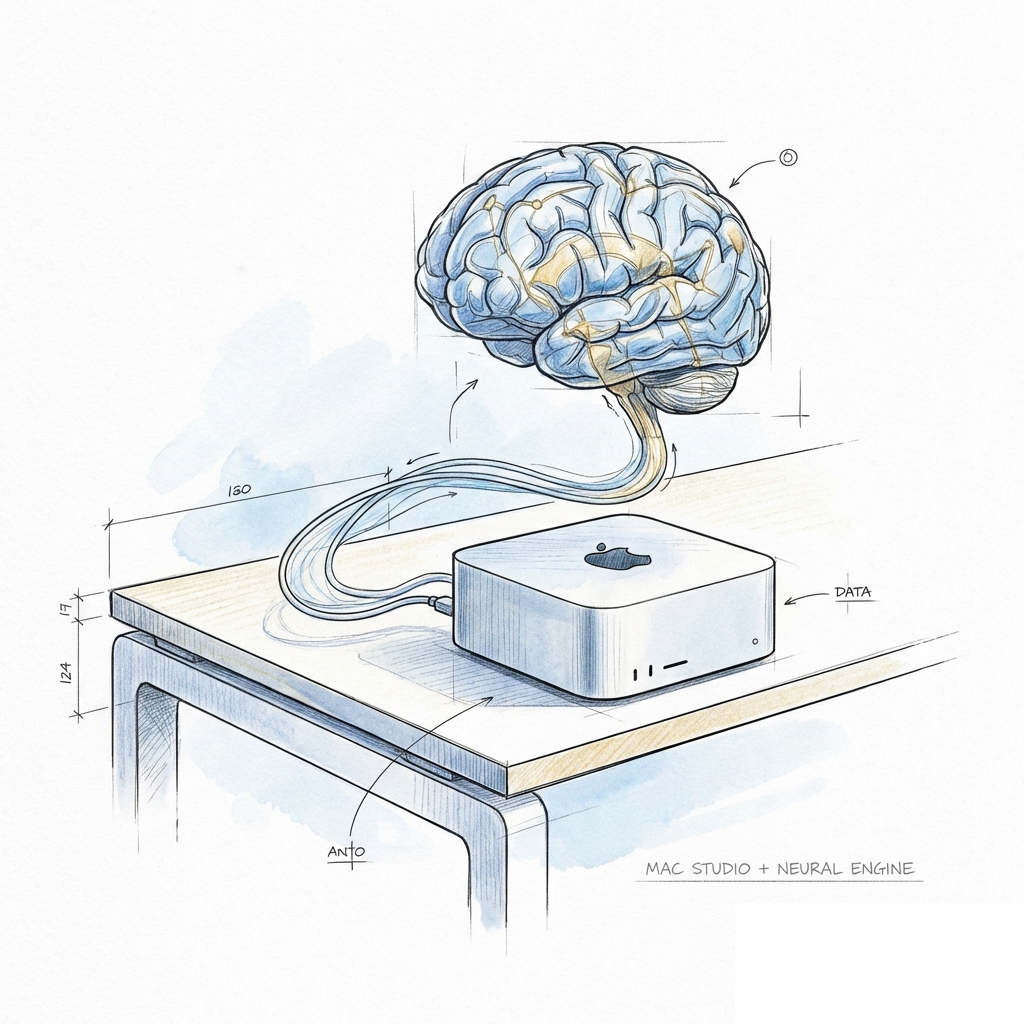
Futuristic AI Brain connecting to a Mac Studio

High-Level Strategy

Why run local? It comes down to three things: Privacy, Control, and Cost. When you run AI locally, your data never leaves your building. You pay for hardware once, not monthly. And you can run uncensored, specialized models that big cloud providers won't offer.
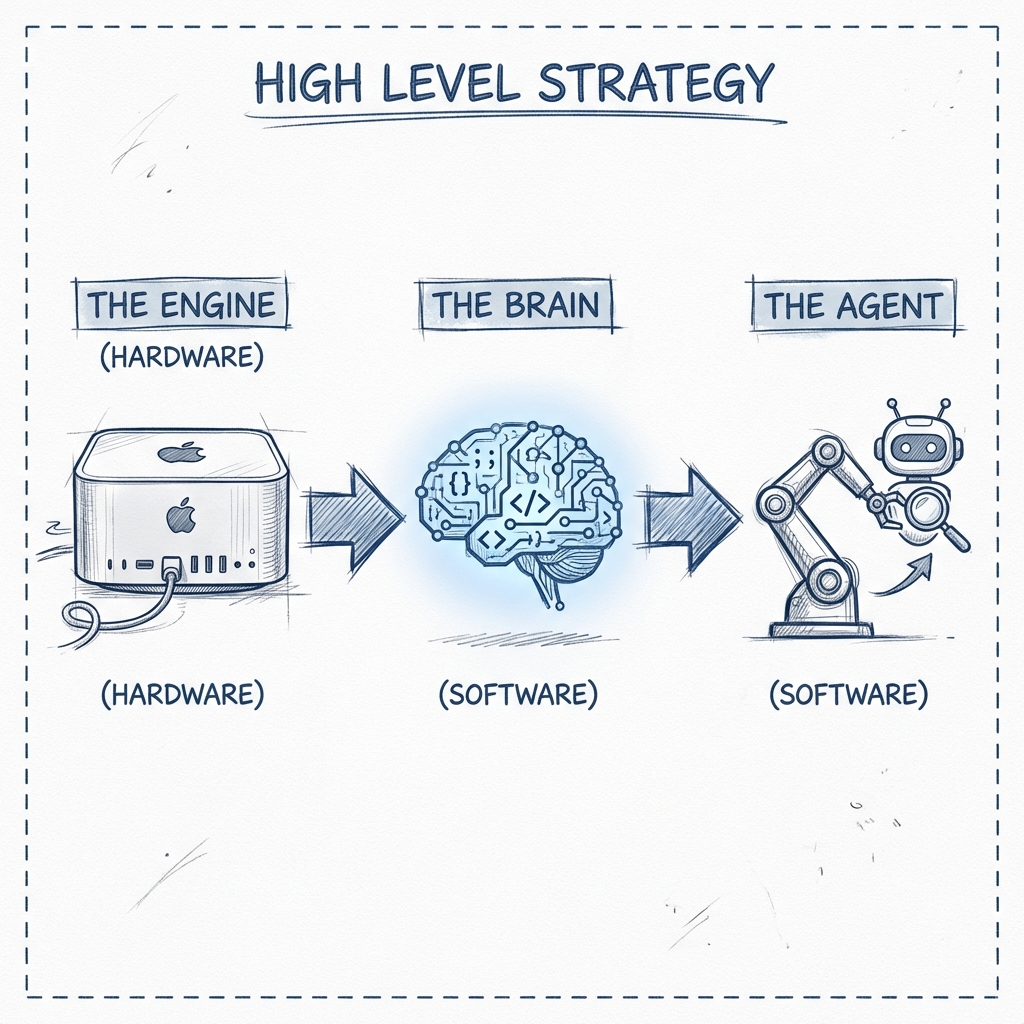
Diagram showing Mac Studio connected to Brain Model connected to OpenClaw Agent

1. The Engine (Hardware)

Deep learning eats RAM for breakfast. We need high-speed, unified memory.

  • Mac Studio (M-Series) is King
  • High RAM > High GPU Power
  • One-time investment

2. The Brains (Models)

Open source is now neck-and-neck with closed models.

  • Reasoning: DeepSeek R1
  • Coding: Qwen 2.5 Coder
  • Images: Flux / Stable Diffusion

3. The Agent (OpenClaw)

Models just talk. Agents do.

  • Independent Worker
  • Can browse web & use tools
  • Connects to your local models

Understanding Memory: RAM vs. VRAM

This is the most confusing part for beginners. Here is the critical difference between a PC and a Mac for AI.

Traditional PC (Split Memory)

CPU RAM and GPU VRAM are separate.

Your AI model MUST fit entirely inside the GPU VRAM to run fast. Consumer cards max out at 24GB (RTX 4090). If your model is 30GB, it won't run (or runs extremely slowly).

Apple Silicon (Unified Memory)

RAM IS VRAM. They share the same pool.

If you buy a Mac with 64GB of RAM, your GPU has access to almost all of it (~48GB+ for AI). This allows you to run massive models that would otherwise require $30,000+ enterprise GPUs.

1 MacOS & System

The baseline. You need to run the OS, browser, Docker, and background apps.

Reguired: ~8 GB

2 The Brain (LLM)

The biggest cost. Varies wildly by "intelligence" level (Parameter count & Quantization).

Basic (7B - 14B) 8 - 12 GB
Smart (32B) ~20 GB
Genius (70B) ~42 GB

3 Context (Memory)

Short-term memory processing. Longer documents or chat history = more RAM.

Estimate: 2 - 10 GB

4 Vision & Tools

Running image generators (Flux) or Vector Databases for RAG alongside your LLM.

Estimate: 4 - 16 GB

Real World Scenarios

Starter Pack
System 8GB
Llama 3 8B 6GB
Context 2GB
Total Needed 16 GB
Pro Assistant
System 8GB
DeepSeek 32B 20GB
Flux (Image) 12GB
Context 8GB
Total Needed 48 GB
*Requires 64GB Mac
God Mode
System 8GB
DeepSeek 70B 42GB
Heavy Context 30GB
Total Needed 80 GB+
*Requires 96GB or Ultra

1 Hardware Requirements

Unlike gaming PCs where the GPU is everything, for Local LLMs, Memory (VRAM/Unified Memory) is the bottleneck. You need to fit the entire model into memory for it to run fast.

Entry Level

Budget: $800 - $1,200

Mac Mini (M4 / M4 Pro)

  • RAM: 16GB Minimum (Aim for 24GB or 32GB)
  • What it runs: 7B - 14B models (Llama 3, Qwen 2.5 7B, Mistral).
  • Performance: Excellent for coding assistants and fast chat.

The Sweet Spot (Recommended)

Budget: $2,000 - $3,500

Mac Studio (M2/M3/M4 Max)

  • RAM: 64GB or 96GB Unified Memory
  • What it runs: 70B models (Llama 3 70B, DeepSeek R1 Distill).
  • Performance: This is the golden standard. It allows you to run "smart" models that rival GPT-4 in reasoning capabilities.

The Powerhouse

Budget: $5,000+

Mac Studio Ultra (M2/M4 Ultra)

  • RAM: 128GB or 192GB Unified Memory
  • What it runs: 100B+ Parameter models, DeepSeek V3 Full (Quantized).
  • Performance: Research-grade AI lab on your desk.
Apple Mac Mini Edition

Which Mac Mini Should You Buy?

The Mac Mini (M4/M4 Pro) is the most cost-effective way to run local AI. However, memory is permanent. Choose your configuration based on what you need to run.

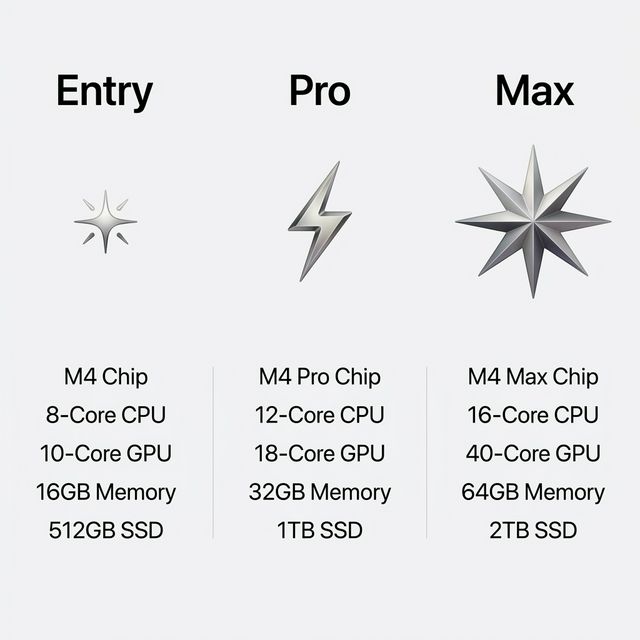
Mac Mini M4 Entry vs Pro vs Max Comparison Chart

Critical VRAM Rule for Mac Users

MacOS reserves approximately 4GB - 6GB of RAM for the system and display. The rest is available for your AI models.

16GB RAM ≈ 10GB Usable
32GB RAM ≈ 24GB Usable
64GB RAM ≈ 48GB Usable
Budget & Config Research & Brainstorm Coding Image Generation Office Work
ENTRY ($600 - $1,000)

Mac Mini M4

16GB - 24GB Unified Memory

Best for: Students, dabblers, and basic assistants.

DeepSeek-R1-Distill-Llama-8B

Fast reasoning, low memory footprint. Fits easily in 10GB VRAM.

Qwen 2.5 Coder (7B)

Excellent auto-complete and small script generation.

Flux Schnell

Optimized 4-step model. Runs in ~8GB VRAM. Fast but lower detail.

Llama 3.2 (3B)

Instant email rewriting and summaries. Runs in background.

PRO VALUE ($1,400 - $1,700)

Mac Mini M4 Pro

24GB - 48GB Unified Memory

Best for: Developers, Designers, Heavy Multitasking.

DeepSeek-R1-Distill-Qwen-32B

Serious research capability. IQ rivals closed models. Needs ~20GB VRAM.

Qwen 2.5 Coder (32B)

Professional grade architecture understanding.

Flux Dev (Quantized)

Standard 20-step generation. High fidelity. Fits in 48GB perfectly.

Llama 3.1 (8B)

Reliable, smart assistant for complex documents.

MAX PERFORMANCE ($2,200+)

Mac Mini M4 Pro (Maxed)

64GB Unified Memory

Best for: Researchers, Local AI purists.

DeepSeek-R1-Distill-Llama-70B

"God Mode". Runs at Q4 quantization (~42GB). SOTA reasoning.

DeepSeek-V3-Small or Qwen 32B (Q8)

Full context coding with zero compromise.

Flux Pro / SD 3.5 Large

Run complex workflows, ControlNet, and upscale simultaneously.

Llama 3.3 (70B)

Overkill for office work, but flawless execution.

2 Step-by-Step Setup

Step 1: Install Ollama (The Backend)

Ollama is the easiest way to run models on macOS. It handles all the complex drivers and optimizations.

# 1. Download & Install

Visit ollama.com and download the macOS installer.

# 2. Or install via Homebrew Terminal

brew install ollama

Step 2: Pull The Best Models

Open your Terminal and run these commands to download the brains.

# For Reasoning (The "Thinking" Model)

ollama pull deepseek-r1

Note: If you have less than 16GB RAM, try 'deepseek-r1:7b' instead.

# For Coding

ollama pull qwen2.5-coder:14b

# General Assistant

ollama pull llama3.1

Step 3: The Interface (LM Studio or Open WebUI)

You don't want to chat in the terminal forever.

  • LM Studio: Download from lmstudio.ai. It provides a beautiful, native app experience and can also run models directly.
  • Open WebUI: A clone of the ChatGPT interface that connects to Ollama. Runs in Docker.

Step 4: The Agent (OpenClaw)

Security Warning: Agents can execute code and delete files. Always run them in a sandboxed environment like Docker.

OpenClaw is an advanced autonomous agent. It can plan tasks, write files, and execute commands. We will run it via Docker to keep it safe.

# Run OpenClaw in Docker

docker run -d --name openclaw -p 3000:3000 --add-host=host.docker.internal:host-gateway ghcr.io/openclaw/openclaw:latest

# Configuration

Once running, go to localhost:3000 and set the LLM Provider to 'Ollama' and base URL to 'http://host.docker.internal:11434'

Cloud vs. Local AI

Feature Local AI (Mac Studio) Cloud AI (ChatGPT/Claude)
Privacy 100% Private. No data leaves. Data used for training (usually).
Cost Free (after hardware). $20-$30/month per user.
Censorship Uncensored models available. Strict safety guardrails.
Setup Requires technical setup. Instant (Login & Go).
Speed Fast (no network latency). Variable (depends on internet).